Checkbot is an automatic link-checking tool housed within Public Website WordPress . It goes through the BCIT public website (and Banner MYCOMM letters) and checks each and every link it encounters. It runs weekly, usually on Wednesday night and then emails all WordPress Publishers associated with a section that currently contains problem links. The report for each section is also always available to view for all public website WordPress Publishers and Editors with access to that section.
Important: Checkbot no longer checks Commons sites. BCIT recommends using the W3C Link Checking tool to check links on these sites, referencing this article for further information about the errors it reports.
Available Now: New Checkbot!
Previously, the Checkbot tool was hosted outside of WordPress. The new version of Checkbot which is integrated into public website WordPress, has now launched as of the week of June 1, 2026. This article has been updated to describe the new version. Training on using the tool is also available, so sign up for any available training session.
Where can I see my broken links report?
In addition to the email link, you can find your latest broken link report at anytime in the following way:
- In public website WordPress, use the Section Selector drop-down in the WP admin bar to select the Section for which you wish to see the report.
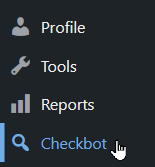
- Click Checkbot in the WordPress menu.
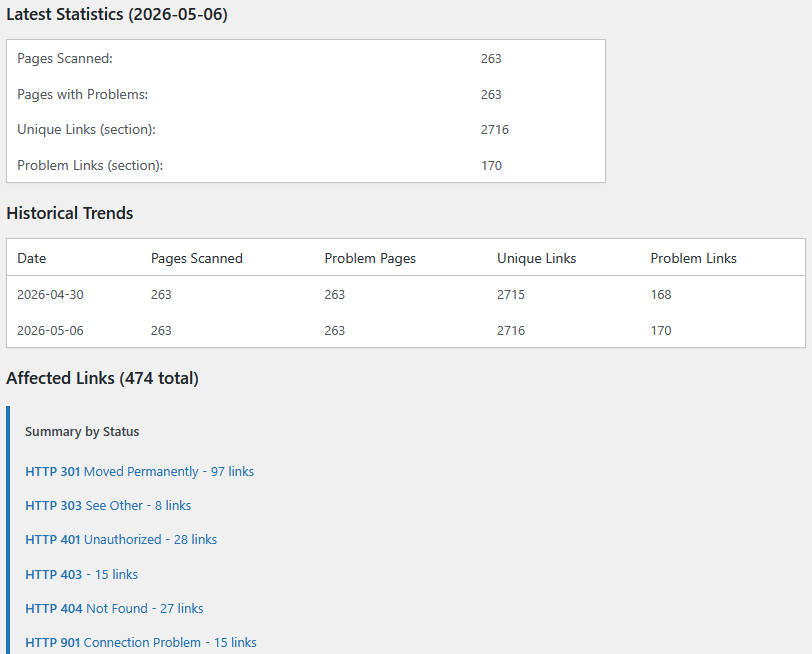
The report starts with a brief table of current statistics and a comparison of past statistics. The problem links are then listed by error code category.
Banner MyComm letters
Checkbot checks for problem links in MyComm letters and generates an additional report for them separate from the usual report. For the very small group responsible for these letters, to see this report:
- In public website WordPress, use the Section Selector drop-down in the WP admin bar to select the Admission Section.
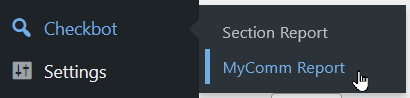
- Hover your mouse over Checkbot in the WordPress menu and click MyComm Report in the submenu that appears.
How do I find these problem links in the content?
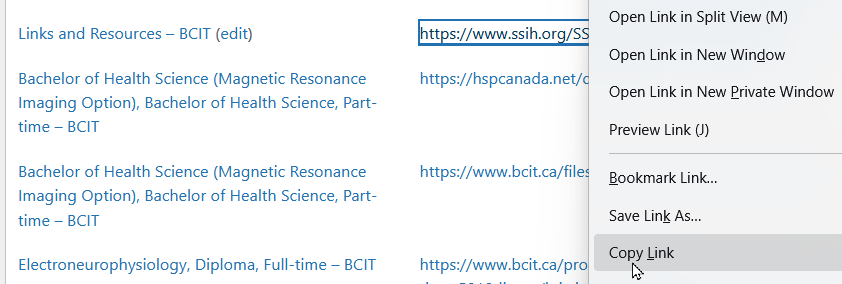
Each error code category displays a list of problem links paired with the page, post, program, or course they’re found in, arranged alphabetically by title. Because each problem link is reported on its own line, places with more than one problem link of the same type will appear on multiple lines (and sometimes under more than one error code category).
Important notes
- In most cases, the content with the problem link is fixable within WordPress, but in some Programs and all Courses and MyComm letters the problem link will need to be fixed in Banner using processes appropriate to the content type. The method below still works to figure out where problem links are found in Programs and Courses.
- Note: Rarely, you may discover a link with no text, for instance <a href=”https://www.brokenlink”></a> which doesn’t show up in the design view of the editor. The method below will always find these empty links, and you can usually delete the link entirely.
What do the error codes mean and how do I fix them?
Click on the codes below to expand that error’s explanation.
Final notes
The first time through your broken link report may be daunting and time consuming–especially if you have never checked your site for broken links. Once you have completed the first pass through, future report checks will be much faster and easier.
If you have questions about your report or are having trouble solving a link problem, please submit a Service BCIT request.
More information about working with links
More information about managing content in public website WordPress
-
Adding, Removing, and Editing Links in Public Website WordPress
-
Cancelling Events in the Public Website WordPress Events Calendar
-
Creating and Editing Events in the Public Website WordPress Events Calendar
-
Creating and Managing Course Umbrellas in Public Web WordPress
-
Creating and Modifying Site/Navigation Menu Structure in Public Website WordPress
-
Creating Headings, Lists, Tables, and Other Core Content Elements in WordPress
-
Embedding Background Video in Page Headers in Public Web WordPress
-
Embedding Video and Video Playlists in Public Website WordPress
-
Fixing and Preventing Broken Links on Your Website Using New Checkbot
-
Managing Mailing Lists and Subscribers in Public Website WordPress
-
Managing PDFs and Other Documents for the BCIT Public Website
-
Navigating Between Multiple Section Views in Public Website WordPress
-
Previewing Your Responsive WordPress Content As It Would Appear on Other Devices
-
Reviewing, Comparing, and Rolling Back to Previous Versions of Content in Public Web WordPress
-
Sharing a Temporary Preview of a Public Website WordPress Page
-
Updating the Global Alert in Public Website WordPress (Emergency Response Team Only)
-
Usage Guidelines for the Events Calendar in Public Website WordPress