Have you ever been working on a draft or a revision of a page and wished you could share a preview of the page with someone who doesn’t have access to WordPress? Well, now you can!
Steps to share a public preview
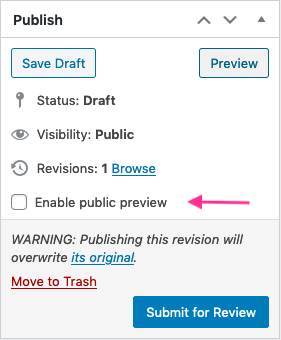
In the Publish sidebar, there’s a check box to Enable public preview. It will display on any saved draft page, or any revision of a page.
- Open a draft new page or draft revision copy of a published page.
Do not turn a Published page back to a Draft page.
If the page is already published, you must create a revision of the page first.
If you turn a published page back to a draft it will remove it from the site entirely and create potentially many broken links.
- Save the draft, if you haven’t yet done so.
- Check the Enable public preview checkbox.
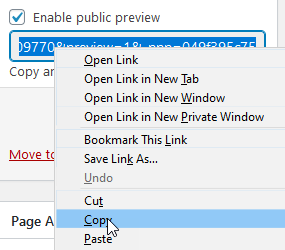
- Right-click to copy the URL that appears.
- [Optional] If the person you are sharing the link with is likely to need to access it off campus or on a personal device, you can visit the new link and use the Toggle BCIT Website bookmarklet to transform the link into one that is available regardless of location or device.
- Share the URL with your recipient (you may want to warn them it’s a temporary link).
Public preview links are temporary
The link is temporary. It will expire after 48 hours. If that happens, you will need to copy and share a new link.
You can enable or disable the public preview for any draft page at any time, just by checking or unchecking the box.
Public preview links are visible but unlisted
When you create a preview link, it won’t appear in any search results within bcit.ca, nor in any search engine results. Preview pages are not password protected. Anyone who has the link will be able to view the page.
More information about public website WordPress
-
Adding, Removing, and Editing Links in Public Website WordPress
-
Cancelling Events in the Public Website WordPress Events Calendar
-
Creating and Editing Events in the Public Website WordPress Events Calendar
-
Creating and Managing Course Umbrellas in Public Web WordPress
-
Creating and Modifying Site/Navigation Menu Structure in Public Website WordPress
-
Creating Headings, Lists, Tables, and Other Core Content Elements in WordPress
-
Embedding Background Video in Page Headers in Public Web WordPress
-
Embedding Video and Video Playlists in Public Website WordPress
-
Fixing and Preventing Broken Links on Your Website Using New Checkbot
-
Managing Mailing Lists and Subscribers in Public Website WordPress
-
Managing PDFs and Other Documents for the BCIT Public Website
-
Navigating Between Multiple Section Views in Public Website WordPress
-
Previewing Your Responsive WordPress Content As It Would Appear on Other Devices
-
Reviewing, Comparing, and Rolling Back to Previous Versions of Content in Public Web WordPress
-
Sharing a Temporary Preview of a Public Website WordPress Page
-
Updating the Global Alert in Public Website WordPress (Emergency Response Team Only)
-
Usage Guidelines for the Events Calendar in Public Website WordPress