This document provides quick navigation and filtering tips for Banner.
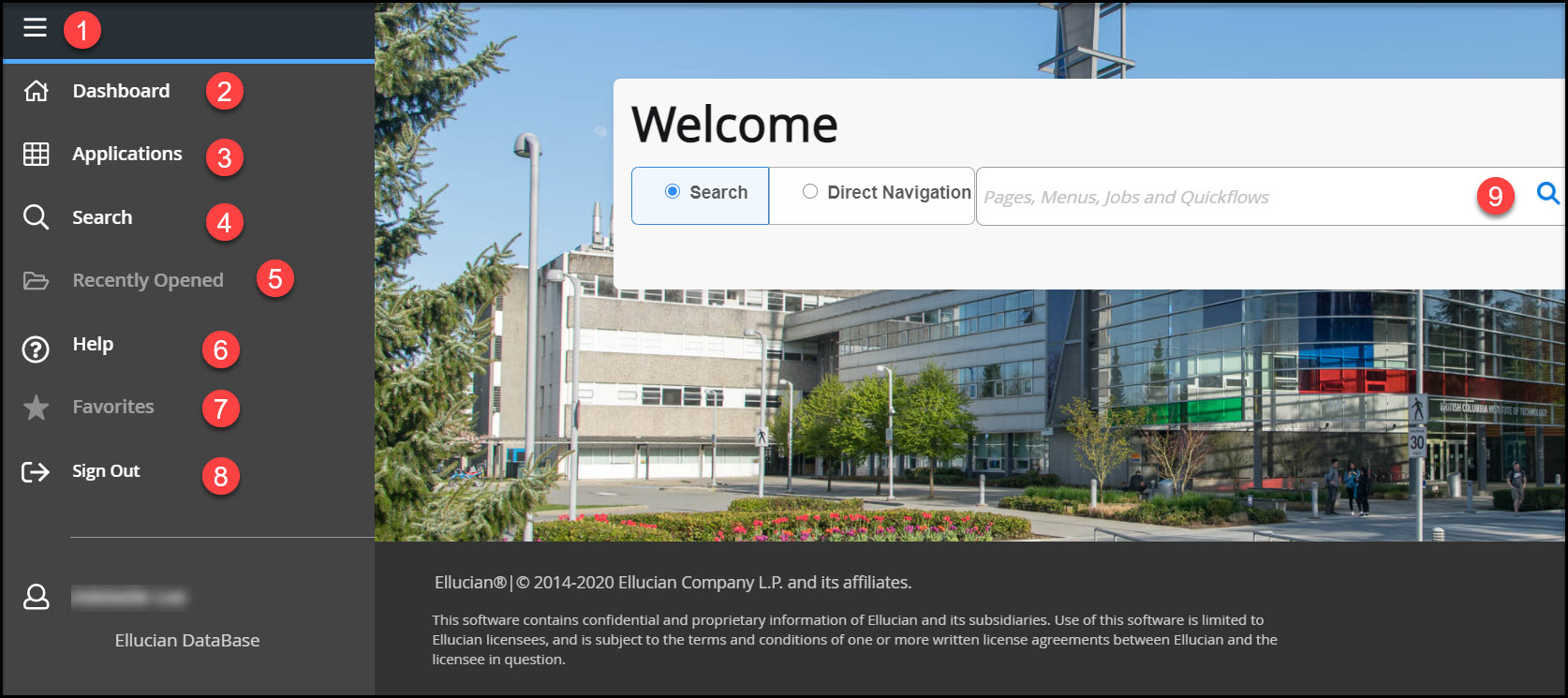
The always present menu panel gives you access to the:
Menu – The Menu icon is located in the upper left corner of the Application Navigator. Click to display or hide the icon names.
Dashboard (CTRL+SHIFT+X) – Click the Dashboard Icon (Home) from any page to return to the Application Navigator landing page.
Applications (CTRL+M) – Click the Applications icon to open the Banner menus. Select a button and continue selecting until you find the page you are interested in opening. Select the descriptive name or acronym to open the page.
Search (CTRL+Shift+Y) – Click the Search icon, shown as a magnifying glass, to open the Search window. Find pages using key words or the seven character identifier for the page. Results display after entering three characters.
Recently Opened (CTRL+Y) – The Recently Opened icon is only active once you have opened a page within your session. The number on the folder shows a count of opened pages. Open the list and select a page to access it.
Help (CTRL+Shift+L) – Select this icon to display help information about the page you are currently viewing. The Help icon is active from each Banner page.
Favorites – The user can now mark pages as Favorites from the Search bar. The Favorites icon star is available on all objects under center Search and vertical Search. Any object marked/unmarked as a favorite will reflect in the Favorites folder. Click on the star to the right of the selected Banner page to add to Favorites.
Sign Out (CTRL + Shift + F) – Click the Sign Out icon to securely log out of the application.
Search box in the centre of the page – Enter at least the first three letters of the descriptive name of the page or the seven character identifier in the Search Box. Select the desired page to open it.
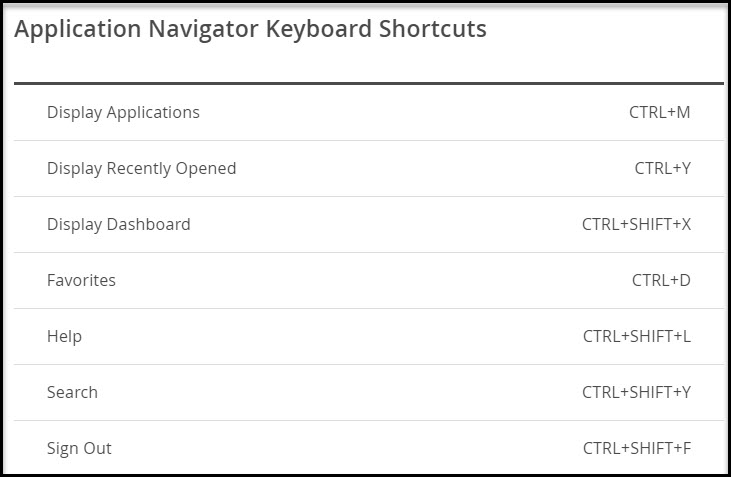
Click on Help, and then Application Navigator Keyboard Shortcuts to see a list of keyboard shortcuts used to navigate the landing page. With the exception of Sign Out, use these keyboard shortcuts like a toggle switch to open and close the specific page element.
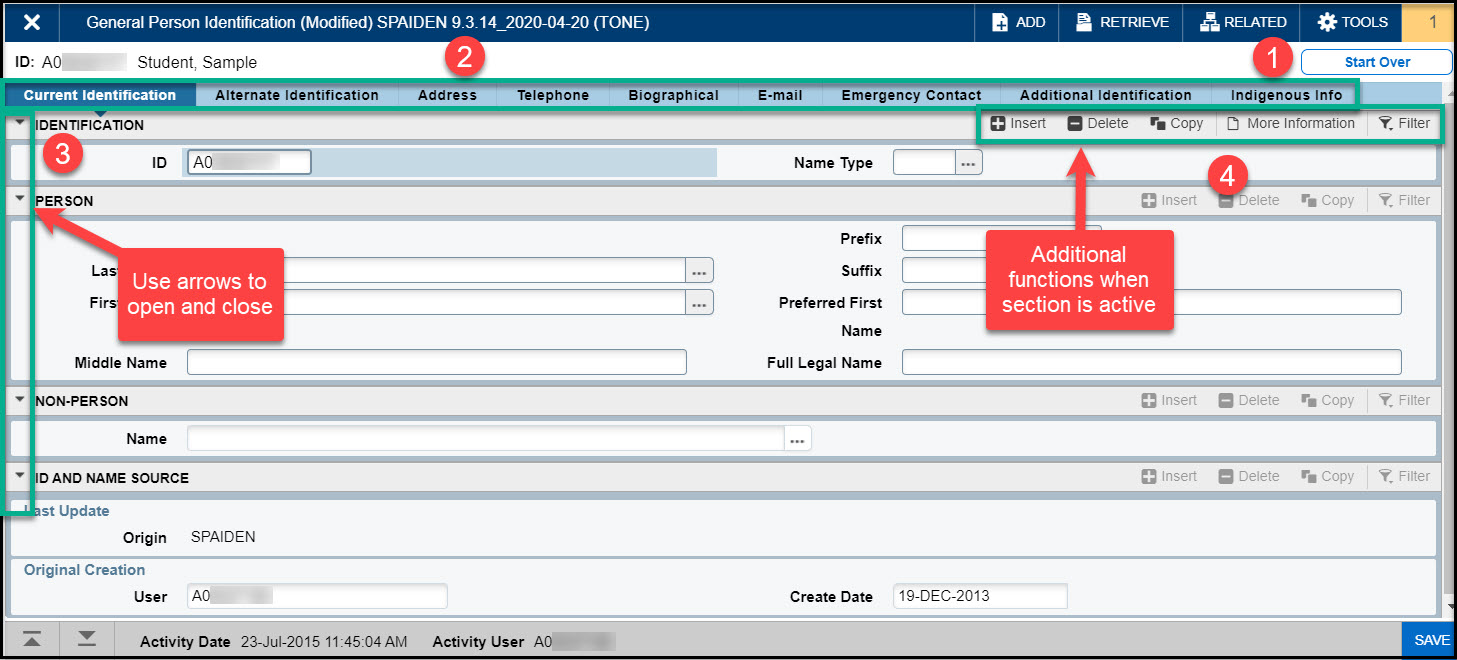
Only the page’s key block displays initially. Enter required information, then click Go to activate the page.The page header provides easy access to key functions including:
X icon: Close the page
ADD / RETRIEVE icons: Used with Banner Document Management.
RELATED icon: Displays a list of pages related to the open page. Select from the list or Search for a specific page.
TOOLS icon: Perform standard actions and options for the page currently displayed (formerly the Options menu in Banner 8.)
The key block collapses and Go is replaced with Start Over (formerly Rollback in Banner 8).
Tabs: Organize information by content area. Tabs are active unless grayed
Sections: Known as blocks in Banner 8, sections (denoted by gray bars) provide details about the ID/Code in the key block.
When your mouse is active in a Section, actions such as Insert, Delete, Copy, and Filter can be performed.
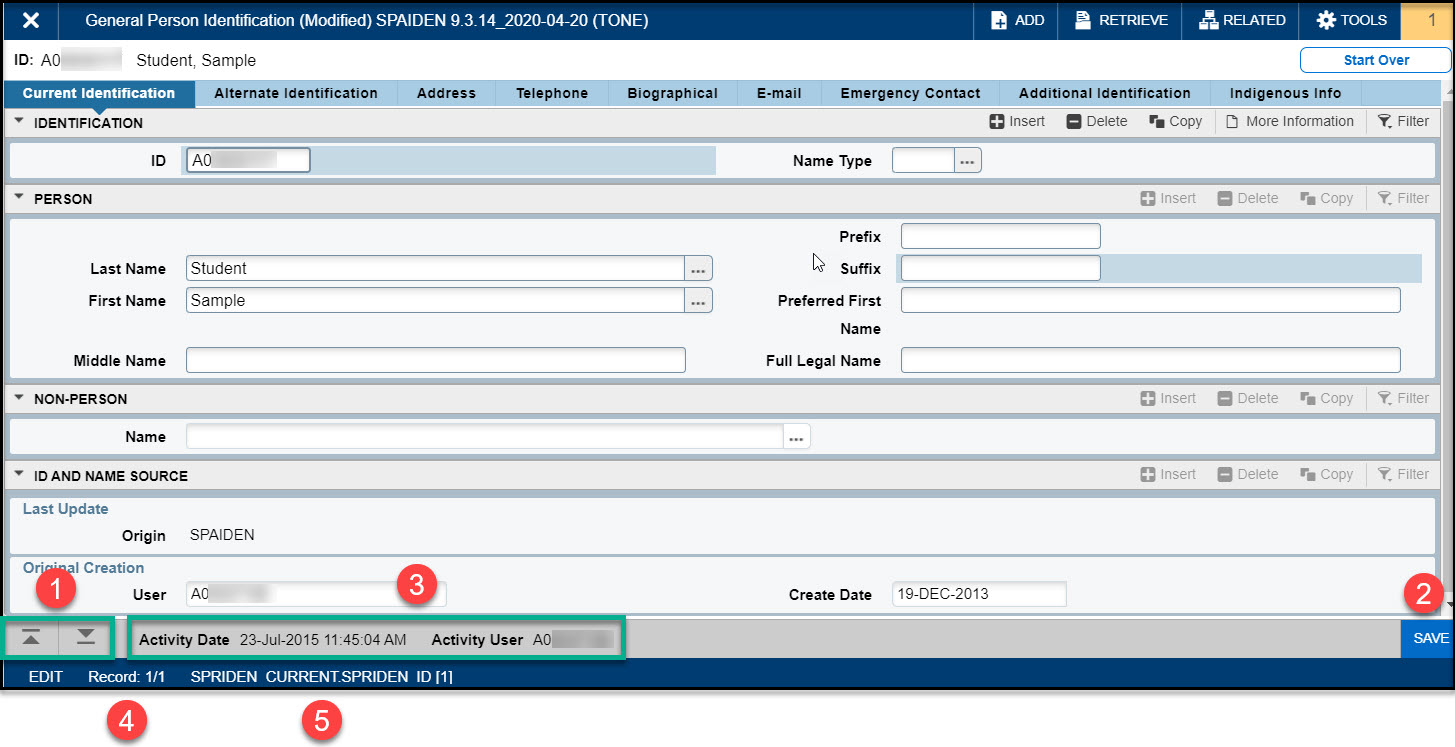
The page footer provides access to additional navigation tools and information.
Next Section / Previous Section icons: Known as Previous Block or Next Block in Banner 8, use these icons to move between sections or tabs on a page.
Save icon: A major difference between Banner 8 and Banner 9, the Save button is located at the bottom right of the page.
If applicable to a page, the last Activity Date and Activity User is displayed.
Record Count: Indicates the number of records
Table/Field Name: Displays at the very bottom of the page for quick reference
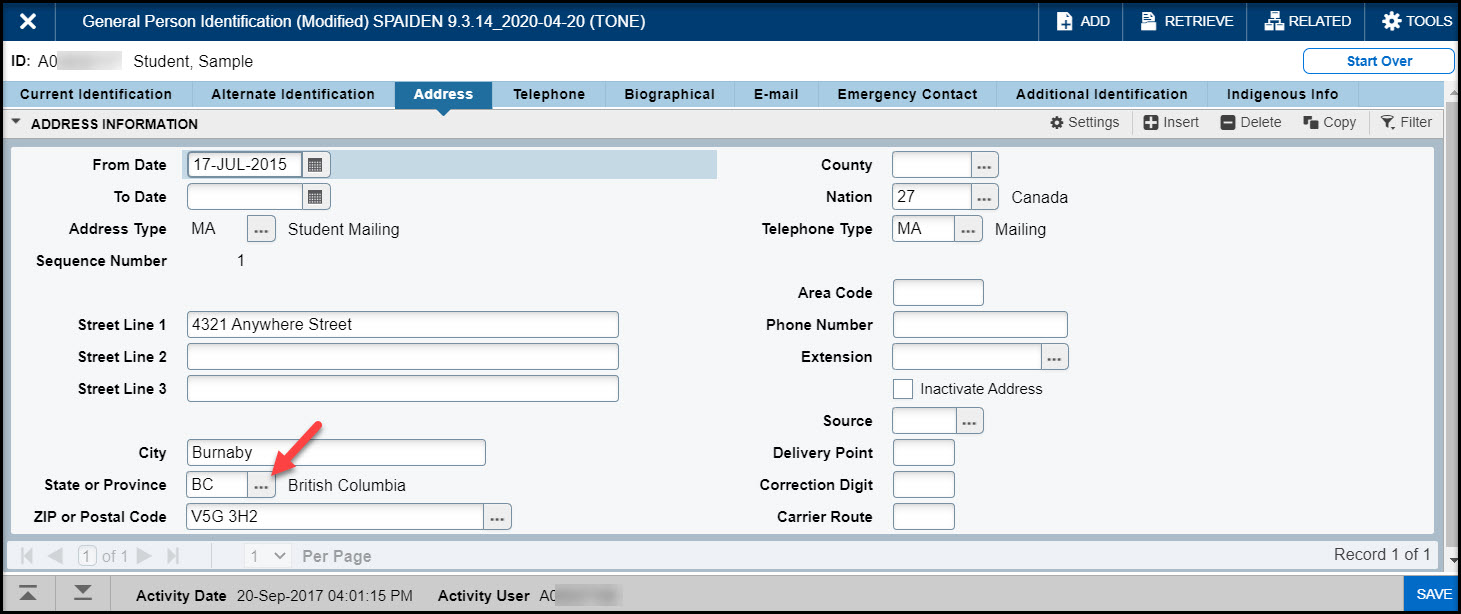
The Lookup icon (represented by an ellipses – three dots) allows you to quickly search for a value for a field.
NOTE: Not all fields have Lookup icons.
Click the Lookup icon in the selected field.
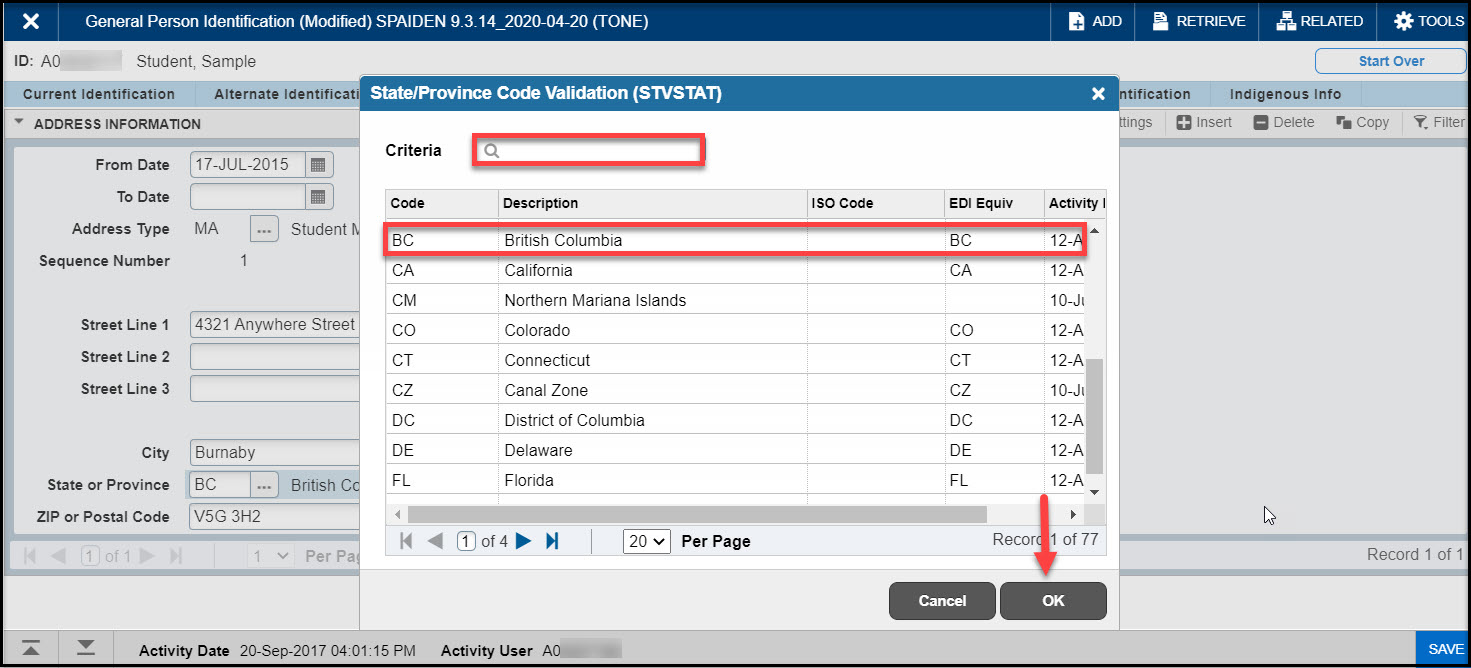
A list of values displays. To narrow the results, type a value in the Criteria field,then press Enter.
To return a value to the selected field, highlight the correct value and click OK. Or, double-click on the correct value to return it to the field.
You can query data in a section by clicking the active Filter icon in the section header. Note that in some cases, when you click the Lookup icon, you will be presented with the Filter window as well. There are two filter types: Basic and Advanced.
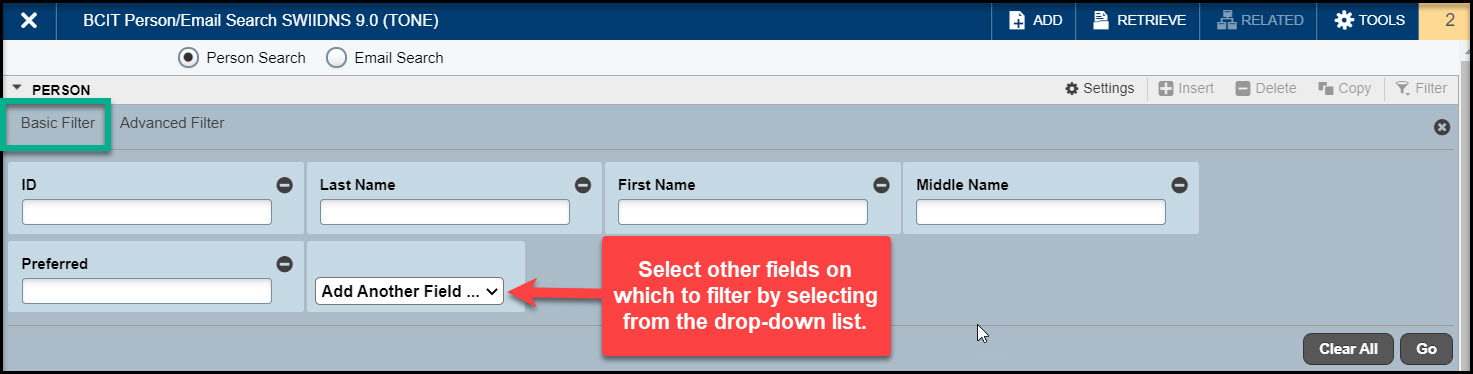
Basic Filter (default)
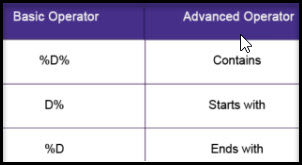
In the fields that display, enter or select a value for each field on which you want to search. To return all records in the system, just click Go without entering any filter criteria. You may add basic operators when entering data in text fields (see below).
Click Go to display the results.
Click the Filter Again button (on the Search Results window) to further refine your search.
NOTE: Use wildcard (%) to maximize the search. The wildcard is a placeholder represented by %, which can be interpreted as any character (including spaces).
Notes:
Remove search fields by clicking the Minus Sign icon associated with the field or click the Clear All button.
Add search fields by selecting from the Add Another Field drop-down list.
Add operators, or wildcards, when entering values into text fields. If you enter operators here and click the Advanced Filter link, the operators are retained. This works in reverse as well: Enter operators on the Advanced Filter window and click the Basic Filter link and all operators are retained.
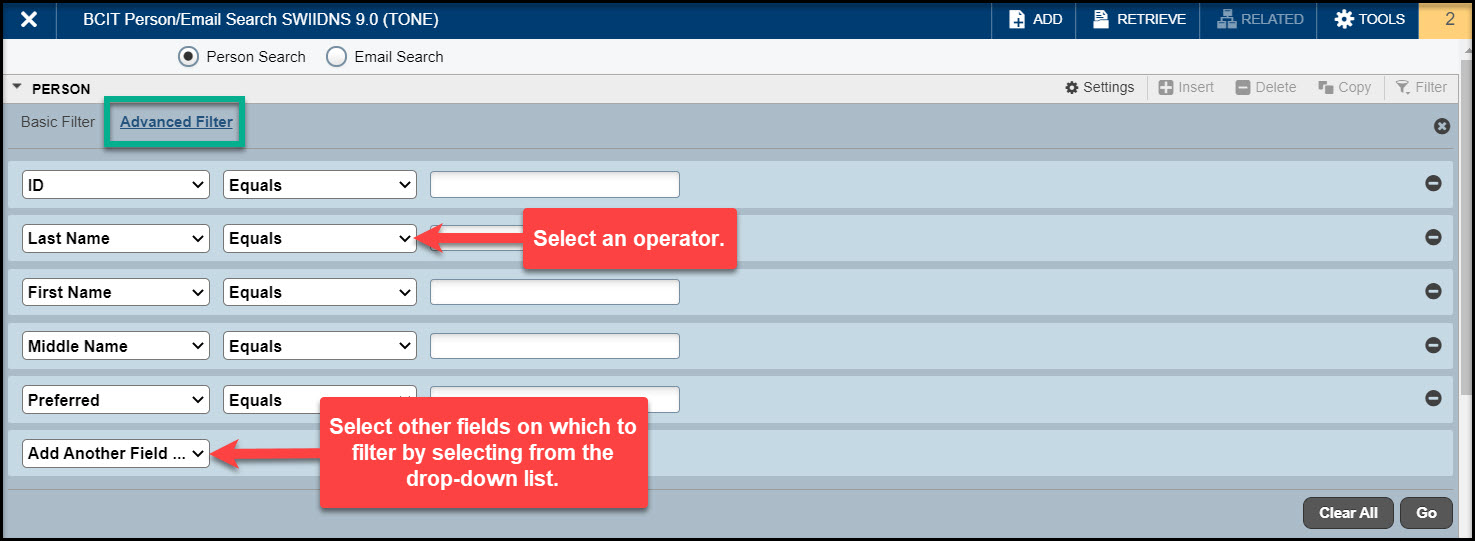
Advanced Filter
Alternatively, you may select the Advanced Filter tab to make a specific query without the ‘wildcard’ (%) option.
For each field on which you want to search, click the Operator drop-down arrow and select the appropriate operator. The available operators depend on the type of field selected (numeric, alphanumeric, date, check box, or other).
Enter a value for the field you selected (in the blank field to the right of the Operator field).
Repeat steps 1 –3 until all filter criteria are entered.
Click Go to display the results.
Click the Filter Again button (on the Search Results window) to refine your search results.
Notes:
Remove search fields by clicking the Minus Sign icon associated with the field or click the Clear All button.
Add search fields by selecting from the Add Another Field drop-down list.
If you enter operators here and click the Basic Filter link, the operators are retained. This works in reverse as well.