Priority to on-campus users
Please note that priority access is given to individuals physically present in the lab. If you are connecting remotely, please ensure that you are saving your work frequently to avoid data loss. For more information on saving your work, please refer to the Accessing Your Stored Files in OneDrive, ShareIn/ShareOut and BCIT Network Drives knowledge base article.
General Information
AppsAnywhere remains the primary method for accessing software required for coursework, both in BCIT labs and on personal devices. However, some applications may require higher-specification hardware or may not be compatible with certain personal devices, including macOS devices and Chromebooks.
If you are unable to install or run a required application on your personal device, you can use a Remote Desktop Connection to access a BCIT lab computer instead. This guide explains how to connect remotely and provides important information about accessing shared lab computers and the types of lab machines available for use.
Important Notes
- Priority access to lab computers is given to individuals physically present in the lab
- GlobalProtect VPN is required in order to remotely connect to BCIT lab devices
- The workstation list reflects current availability and updates when the page is refreshed
- Always check availability before connecting to ensure the workstation is not already in use
- Workstations may be unavailable or restart during BCIT’s daily maintenance window (1:00 AM – 4:30 AM)
Lab Access Types
- General access labs
Use the General Access Computer Lab page. These workstations are intended for general-use and include access to the AppsAnywhere catalogue. - Restricted labs
Specific software and/or peripherals needed for course work are available on these lab computers and access is restricted to registered students. Please contact your program area or instructor for the appropriate Restricted Lab Access page for the Lab that you require access to. - Specialized labs
Use the Specialized Computer Lab page. These workstations are intended for accessing specific applications such as; ArcGIS, AutoDesk, Revit, Solidworks etc through the AppsAnywhere catalogue.
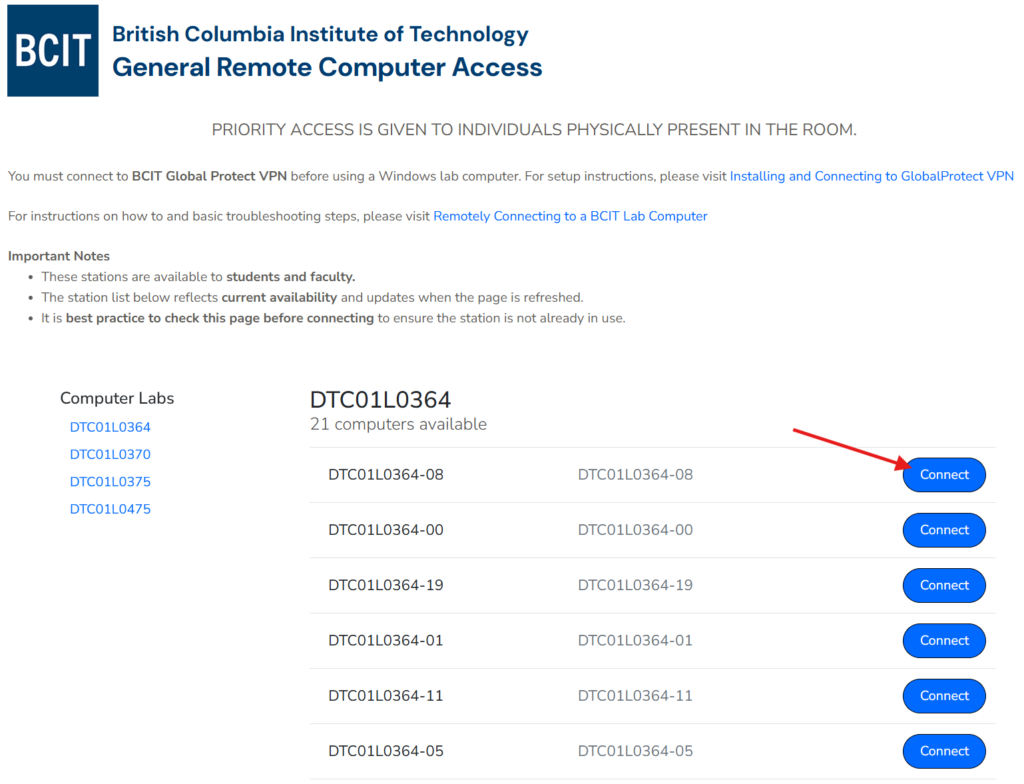
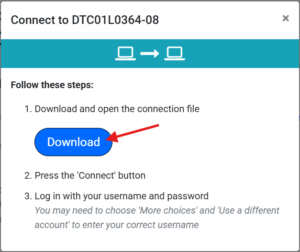
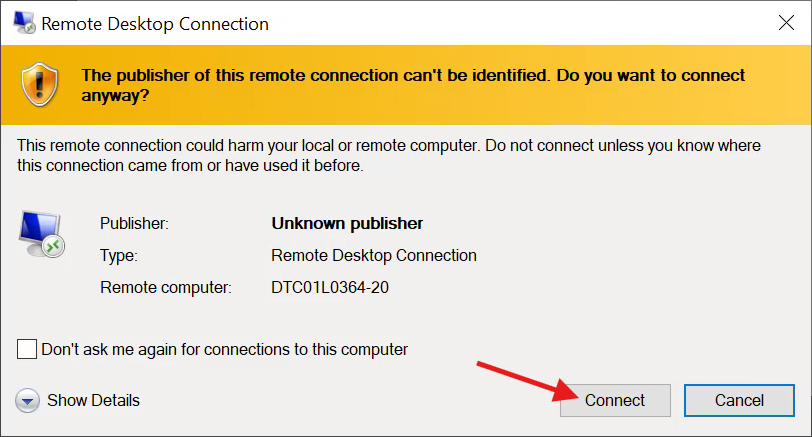
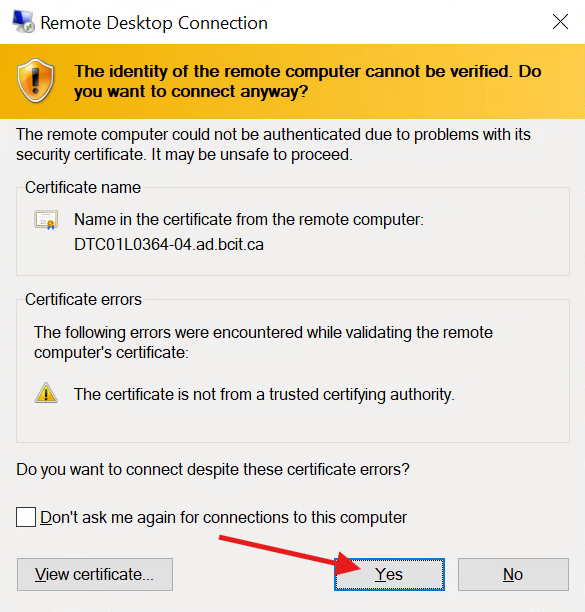
How to remotely connect to a BCIT lab computer
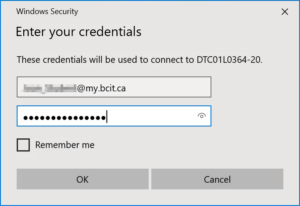
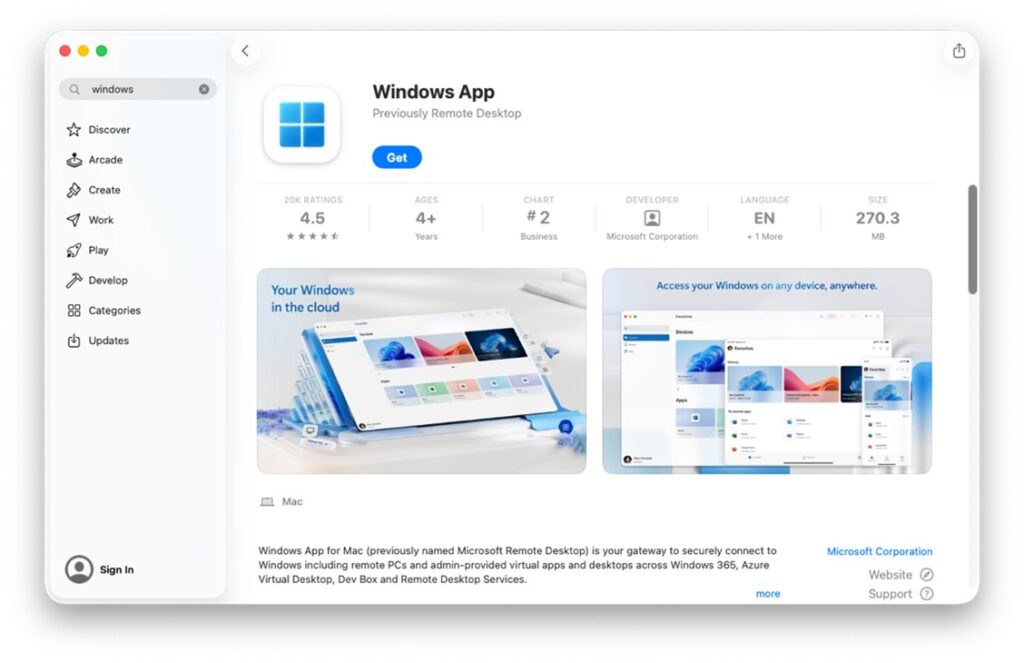
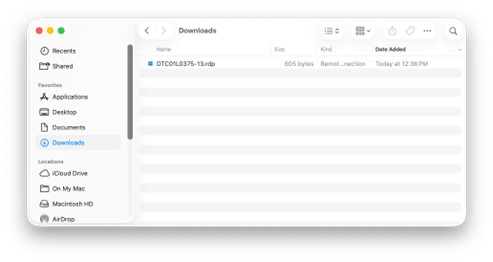
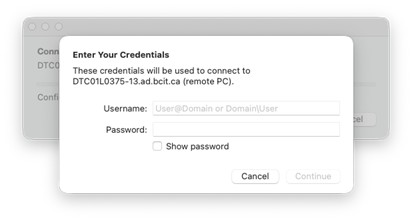
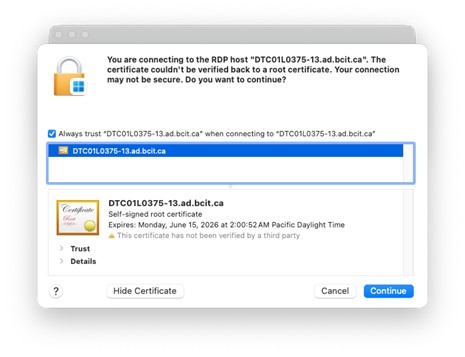
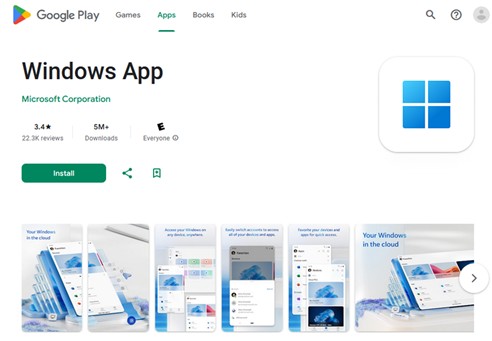
The instructions below explain how to remotely connect to a lab computer. While the instructions for connecting remain the same, please ensure that you are using the appropriate Computer Lab Access page.