BCIT offers pay-printing services for Students across all BCIT campuses. This article explains how to add a BCIT network printer to your personal device, how the printing system works, and how to troubleshoot common issues.
Using PaperCut for pay printing
PaperCut is a print release software that is enabled on certain printers at the various BCIT campuses. Once a print job is sent to a PaperCut enabled printer, you will need to first associate your BCIT ID card to the PaperCut software if it is your first time printing to a PaperCut printer, add credits to your account and then release the job at the printer before the print job is printed.
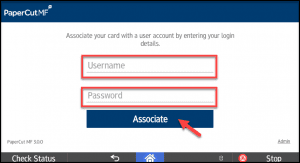
You need to associate your BCIT ID Card with your account prior to using the BCIT pay print system for the first time.
Touch the screen on the printer (MFD – Multifunction device) if the screen is black.
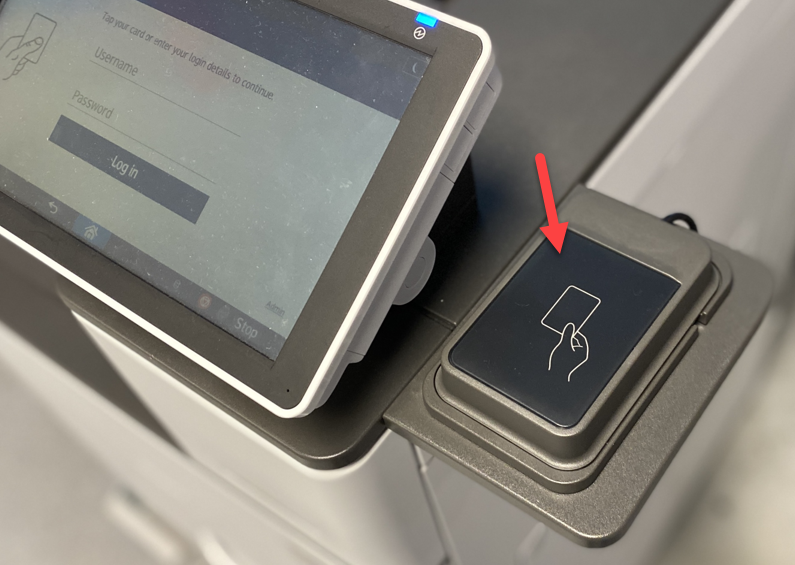
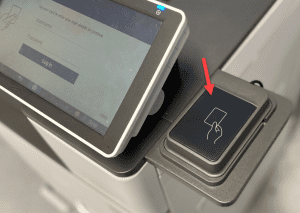
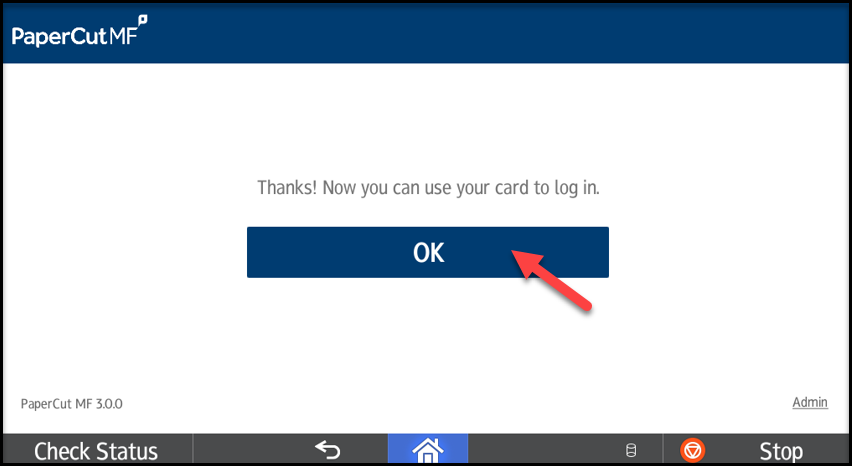
Tap your BCIT ID Card to the card reader on the right side of the printer.
Your card is now associated with your BCIT account. You will be able to login to the pay printers in the future by simply tapping your card to the card reader.
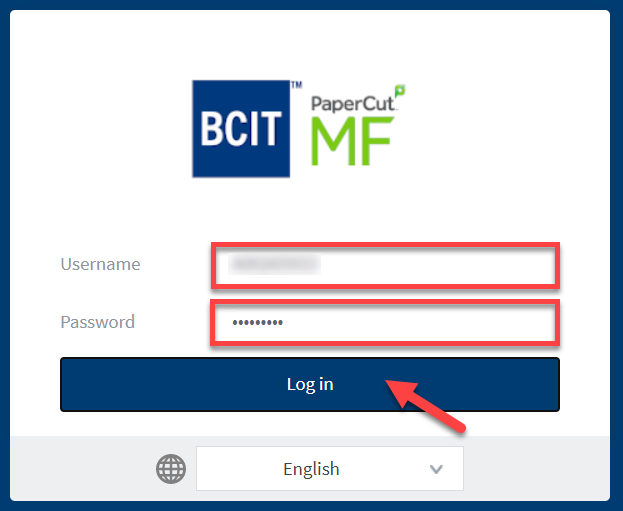
Before you can print jobs, you will need to add some funds to your account. You can now pay online with a credit card through the StudentPrint web page.
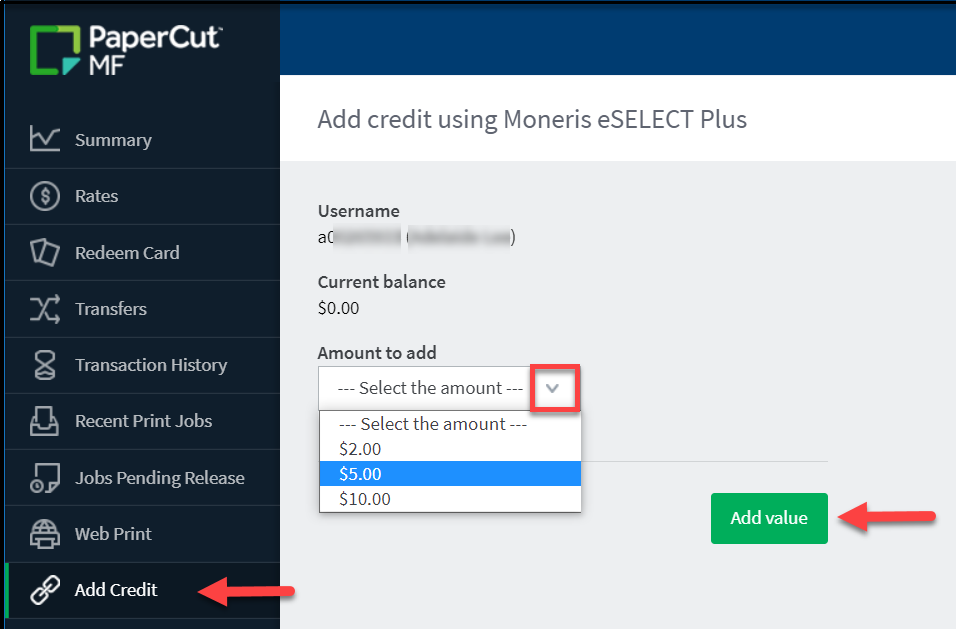
Select the amount of money to add to your account from the drop-down menu.
Press on Add Value.
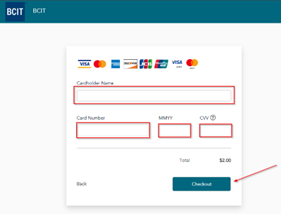
At the payment page, enter your credit card information and press Checkout to complete the transaction.
Your balance will now be updated with the funds you just added.
Student Pay-Print Stations are found in the following locations:
Burnaby campus
Building
Location
NE01
3rd floor – Room 336A
NW04
Health Sciences – 2nd floor – Outside room 2070
NW04
Health Sciences – 4th floor – Outside room 4060
SE06
1st floor – near washrooms
SE12
3rd floor – Outside Library access doors
SE14
Digital Arts Labs
SE14
Library 1st floor – ehPod
SE14
Library 2nd floor – Reference LAN
SE14
Library 3rd floor – Outside lab 301
SW01
2nd floor – near lab L2540
SW03
2nd floor – near student lounge
SW09
1st floor – under the stairs
Downtown campus
Downtown Campus Print Release Stations are located on:
Floor
Location
3rd
In Hallway across from elevators
5th
In Hallway across from elevators
8th
Outside room 890
Aerospace campus
Floor
Location
1st
Inside Library
Size
Price
Locations
Black and White
8.5 X 11 (letter)
8.5 X 14 (legal)
11 X 17 (ledger)
$0.10 / page
$0.08 / side double-sided
All
Colour
8.5 X 11 (letter)
8.5 X 14 (legal)
11 X 17 (ledger)
$0.35 / page
$0.33 / side double-sided
All
Printing from personal devices and on-campus Computer Labs
This section will explain how to print from a personal Windows, Mac, Android and iOS devices and on-campus Computer Labs.
BCIT Students are able to connect and print to the BCIT pay print system from their personal computers while on campus. Follow these instructions to add the printers to your Windows computer:
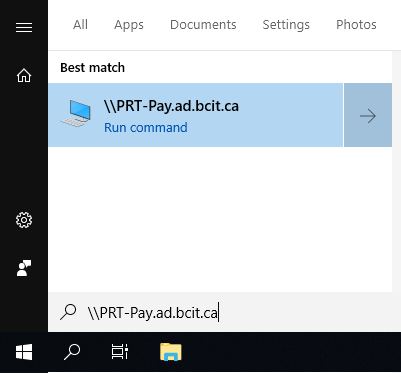
Go to Start and enter the server address \\PRT-Pay.ad.bcit.ca and press Enter.
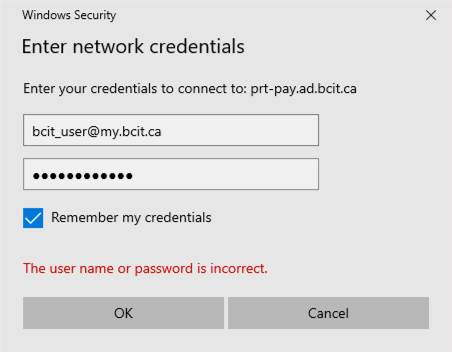
Enter your usual BCIT login credentials (your @my.bcit.ca email address and password) when prompted. Be sure to check off Remember my credentials.
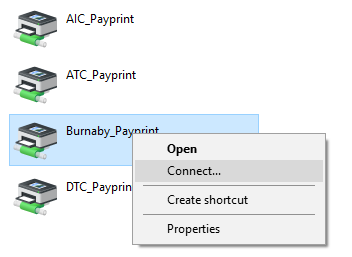
A new window will open with a list of available printers.
Choose the printer you want to install (see list below) and double-click on it, or right-click and select Connect. The selected printer will be installed on your computer.
The printer you just added will be available under Devices and Printers.
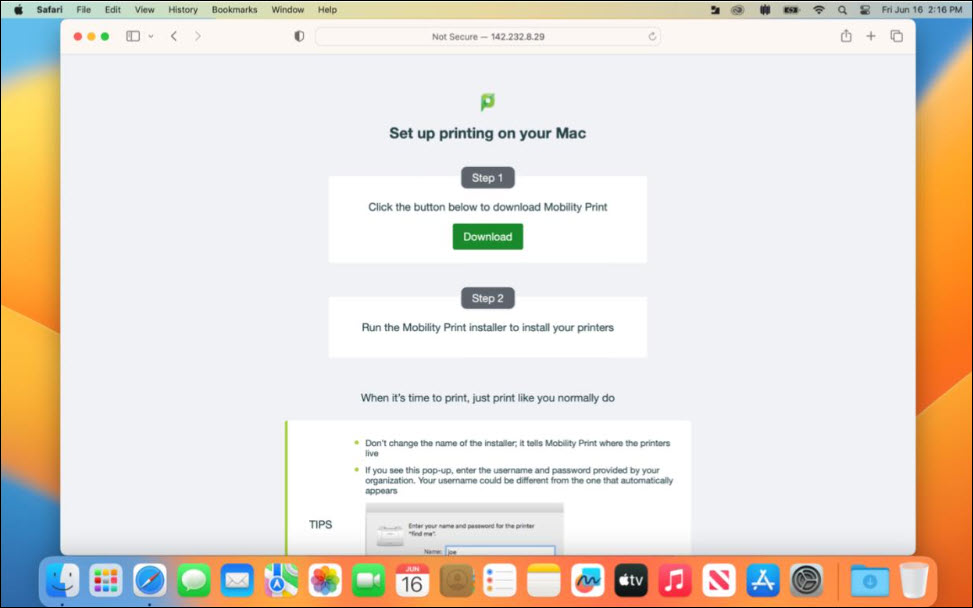
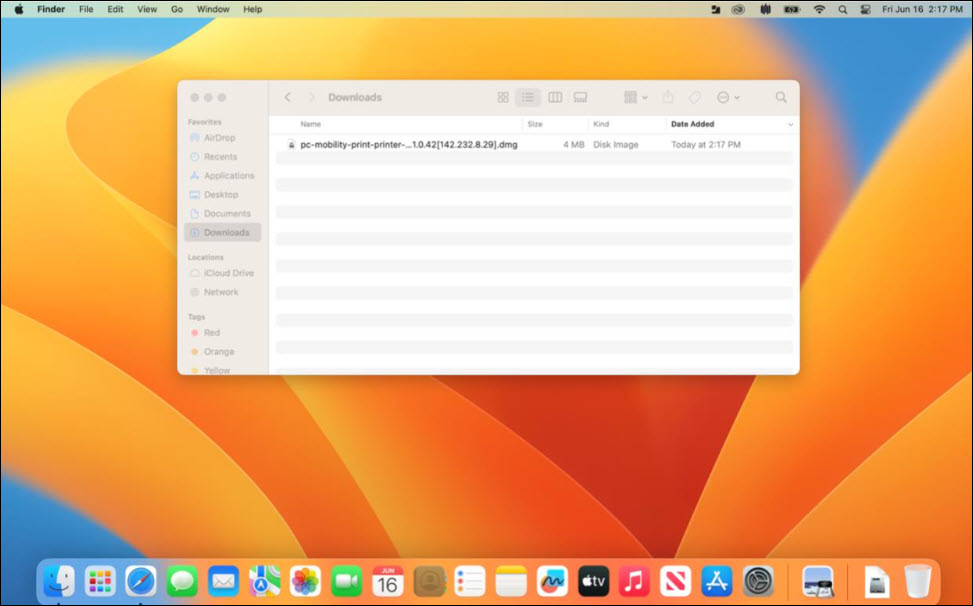
Open your Downloads folder and find the pc-mobility-print dmg.
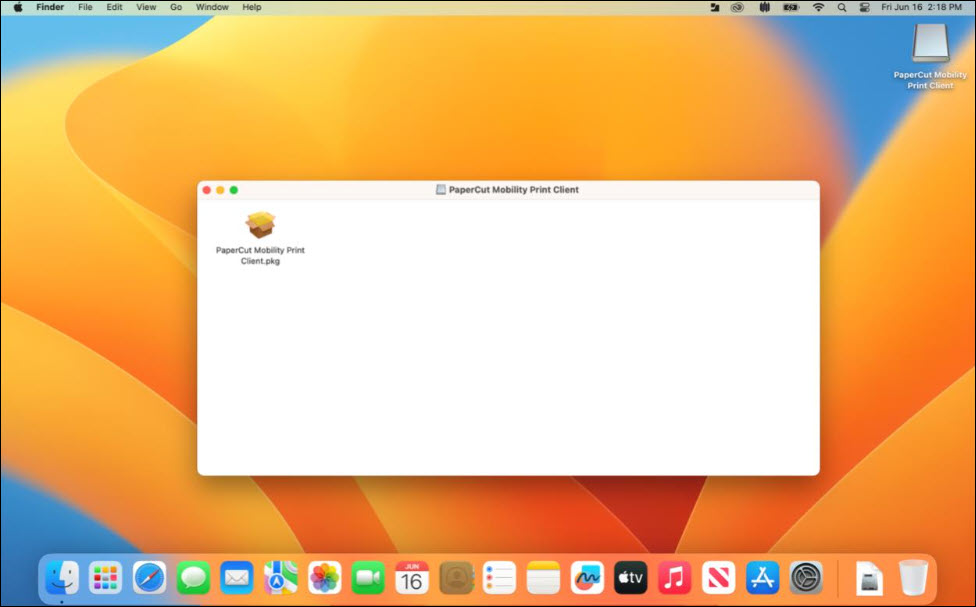
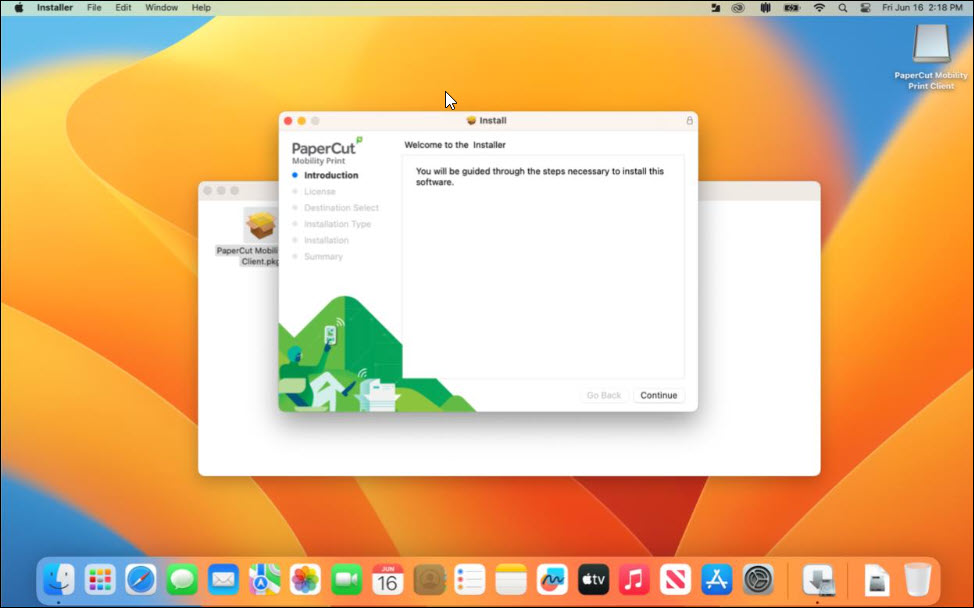
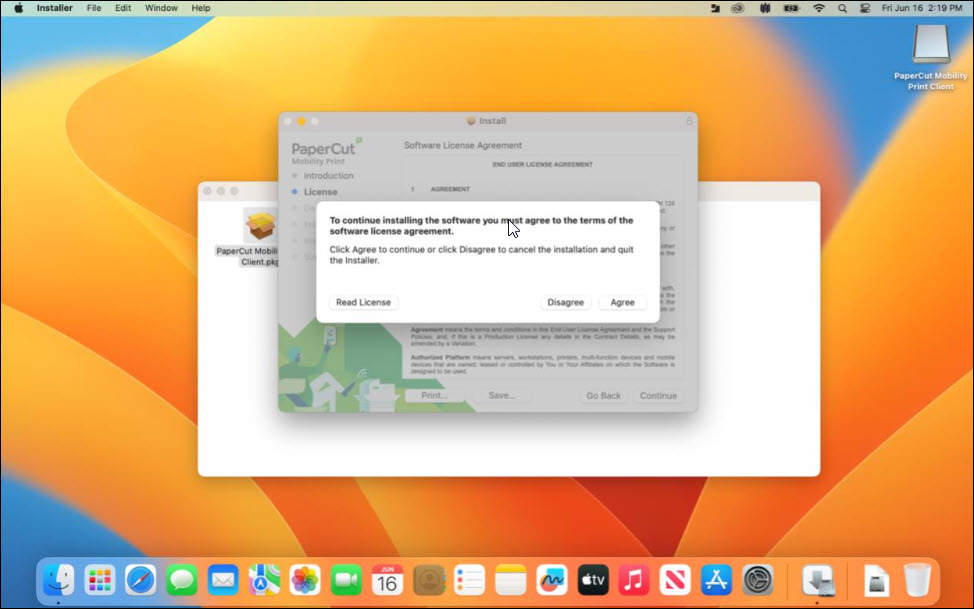
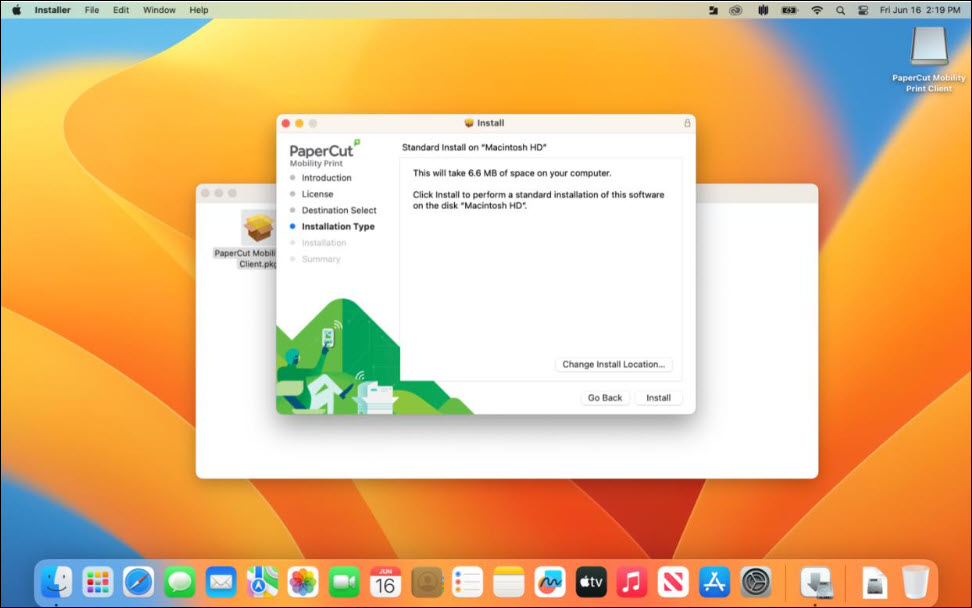
Open the dmg and run the PaperCut pkg.
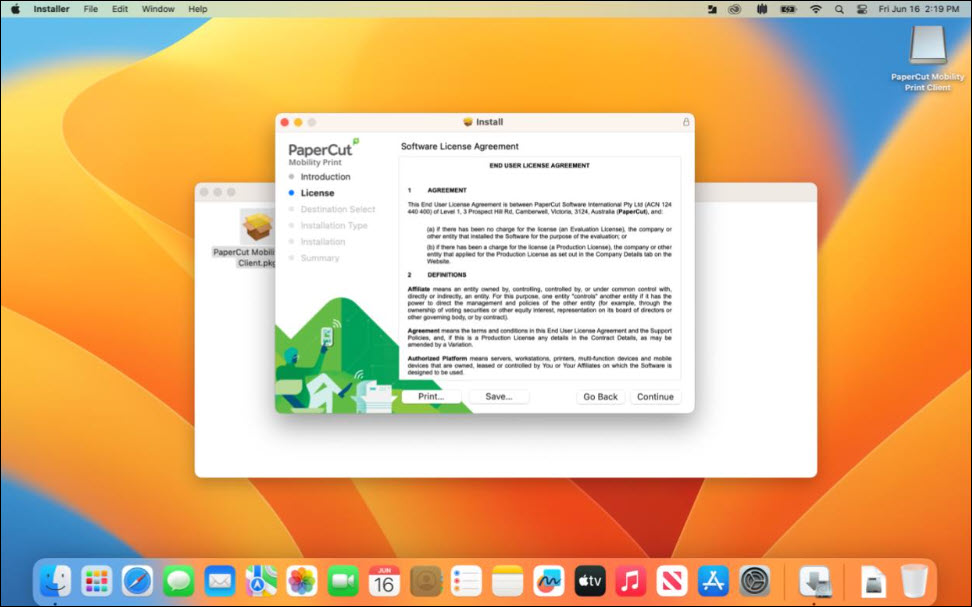
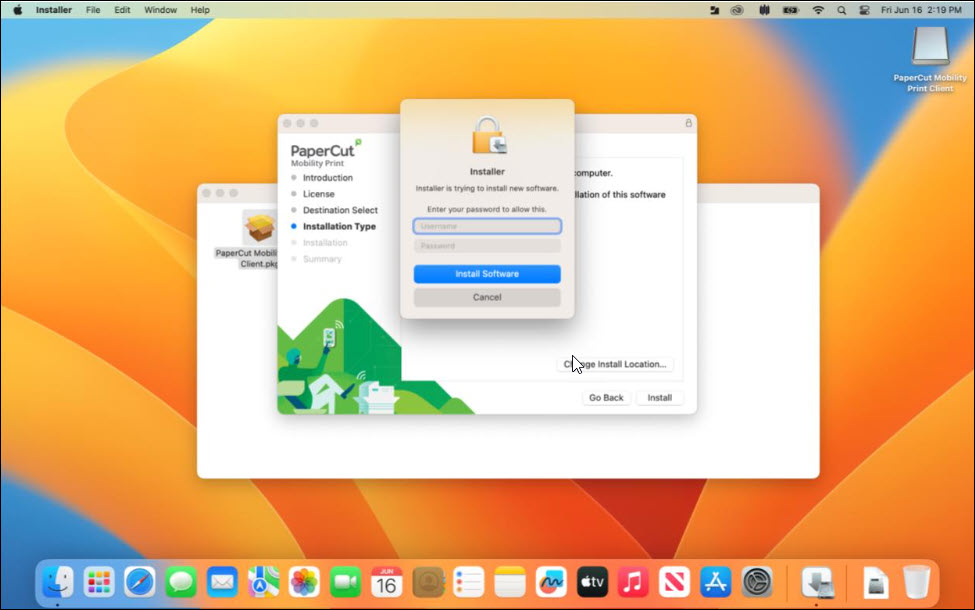
Proceed through the installer, entering administrator username and password of the mac when required.
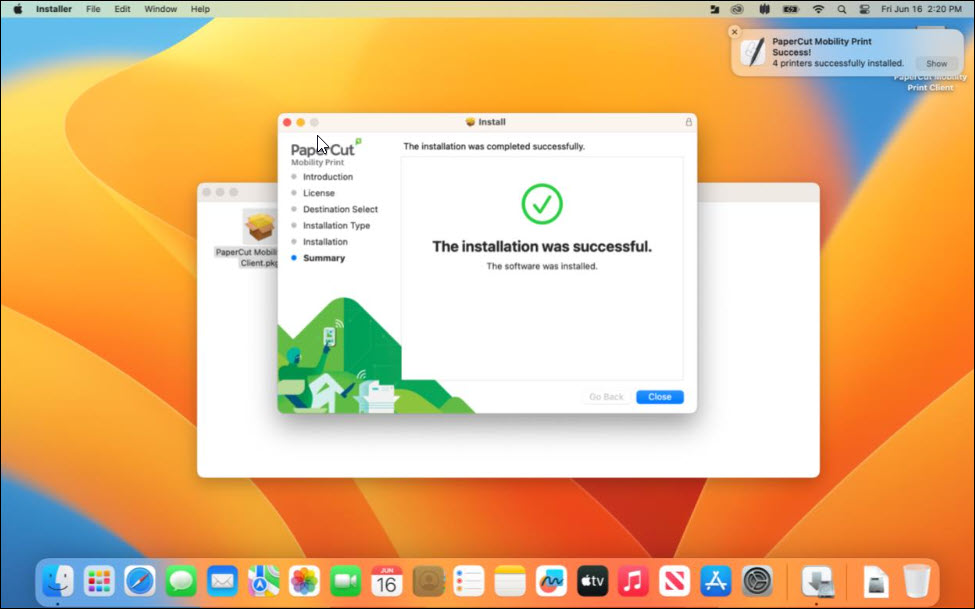
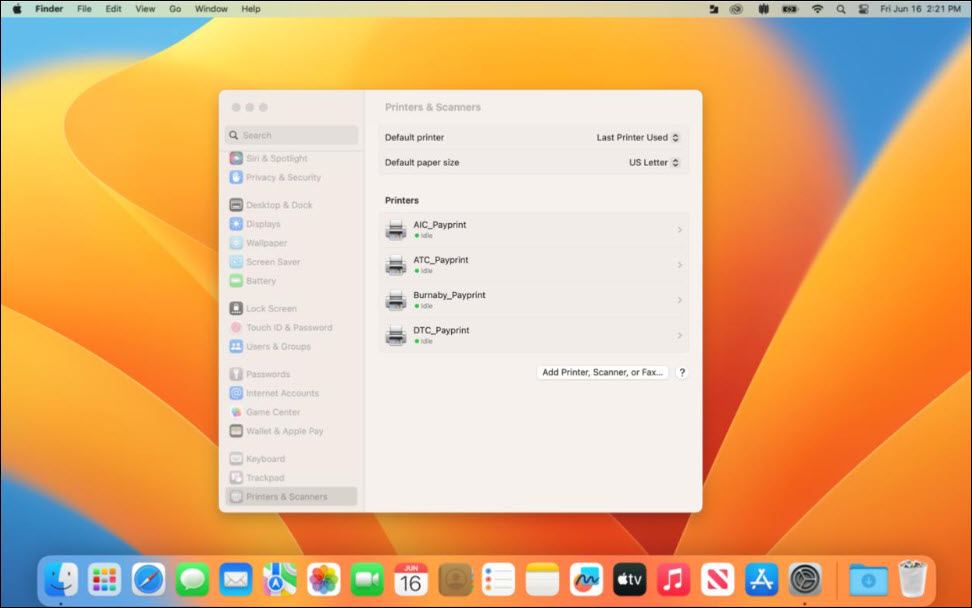
Once installed you will find all the BCIT PaperCut Printers already in Printers & Scanners in System Settings.
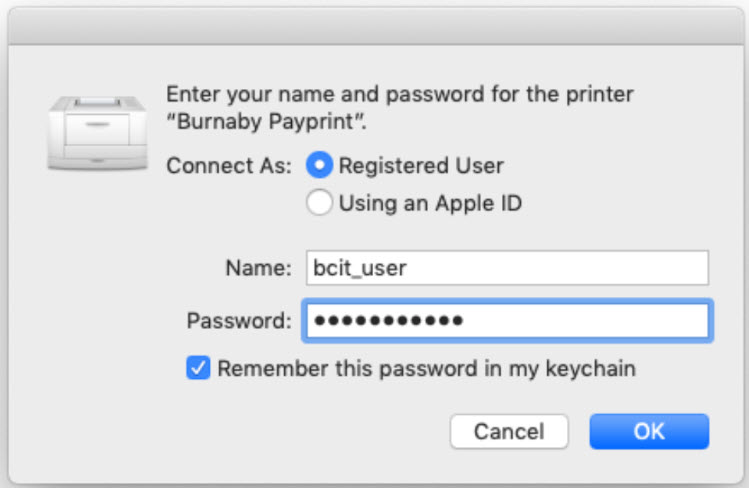
The first time you send a job to the newly added printer, you will be prompted for a username and password. Enter only the prefix for your myBCIT email address (the part before @my.bcit.ca) and your usual BCIT password. Example: If your myBCIT email address were “asmith948@my.bcit.ca”, you would enter “asmith948” as the username.
Check the box labelled Remember this password in my keychain in order to prevent this message from appearing every time.
Navigate to http://prt-pay.ad.bcit.ca:9163/client-setup/known-host/android.html
Click on Install or Update to install the application
If you are prompted as the screen above, choose Mobility Print to get a list of printers.
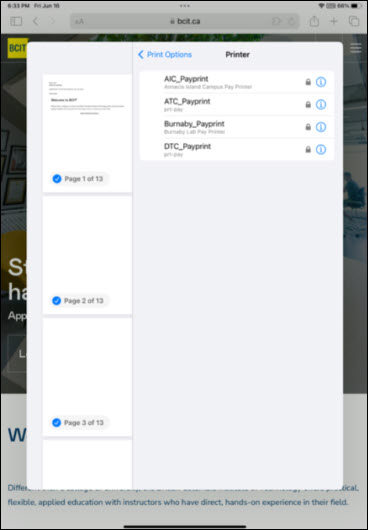
Select a printer that has the PaperCut icon next to it Then press Print
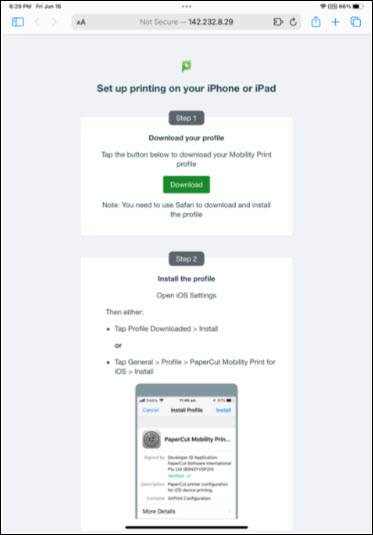
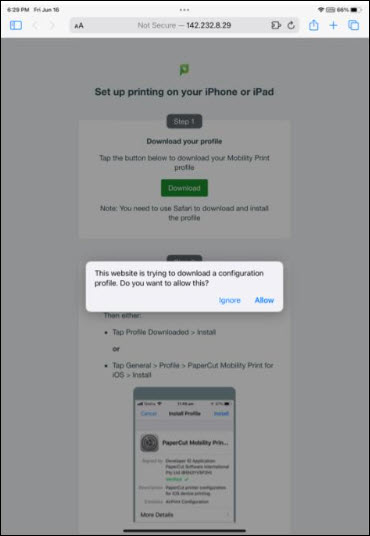
Allow the website to download a configuration profile.|
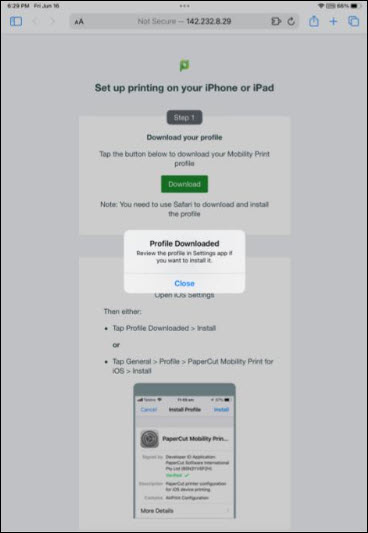
Once the download is complete, close the window and open the Settings app.
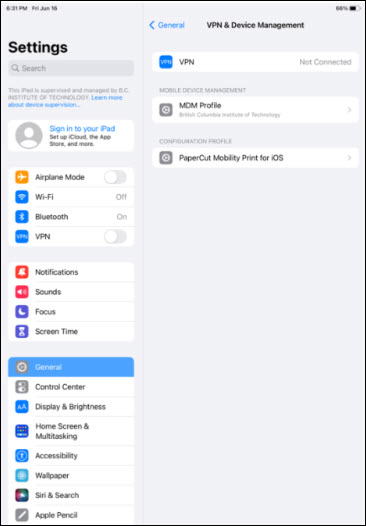
Navigate to General > VPN & Device Management
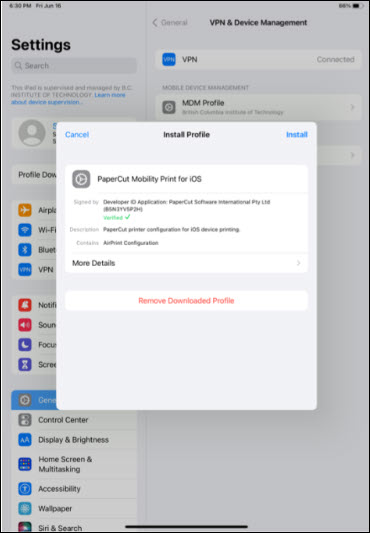
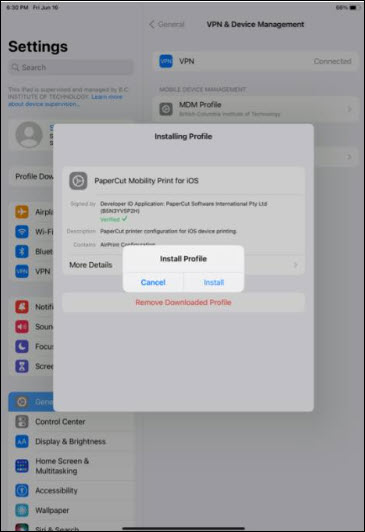
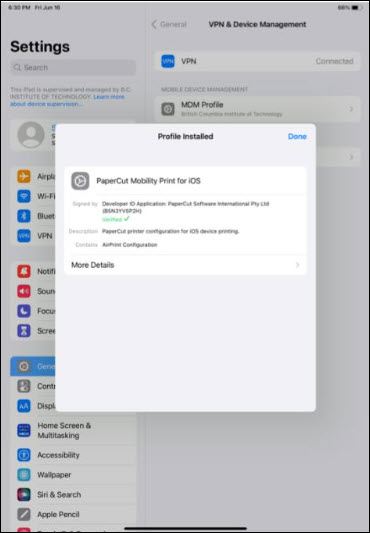
Tap on the PaperCut Mobility Print for iOS configuration profile and install.
Tap Done and you can exit Settings.
Tapping on the Share icon for example in Safari will give you an option to Print.
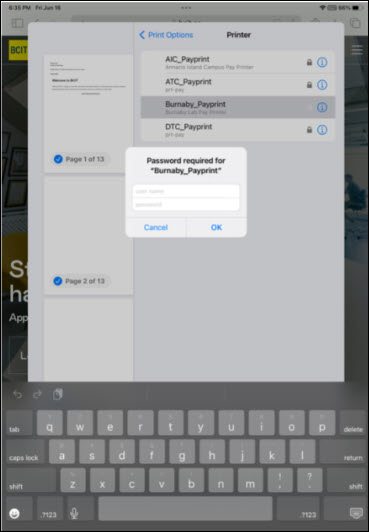
The first time you send a job to the newly added printer, you will be prompted for a username and password. Enter only the prefix for your myBCIT email address (the part before @my.bcit.ca) and your usual BCIT password. Example: If your myBCIT email address were “asmith948@my.bcit.ca”, you would enter “asmith948” as the username.
To print from a computer in a BCIT lab:
Open the Print dialog in the application you’re working in. For example, in Microsoft Word, click File » Print on the menu bar, or click the printer icon to open the Print dialog.
Select the print queue you want to send your job to:
Location
Print queue
Burnaby Campus
Burnaby_Payprint
Downtown Campus
DTC_Payprint
Aerospace Campus
ATC_Payprint
Click Print.
Go to the print station you would like to print from. You can print your document at any print station on campus.
Tap your BCIT ID Card to the reader on the right side of the printer.
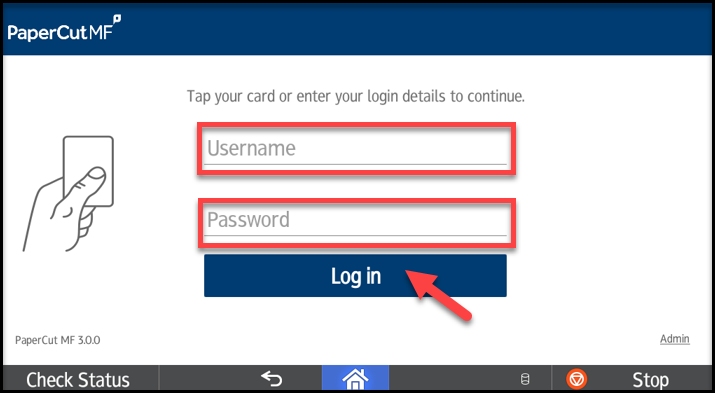
Note: If you do not have your physical BCIT ID Card, you can login with your usual BCIT login credentials using the on-screen keyboard.
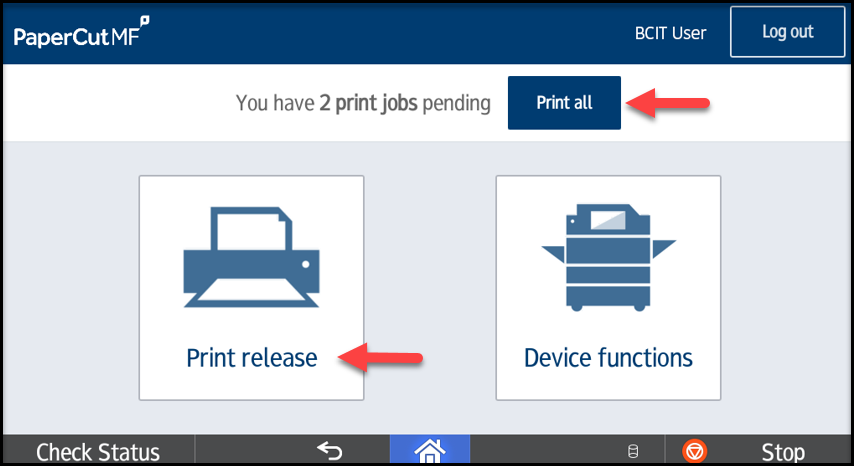
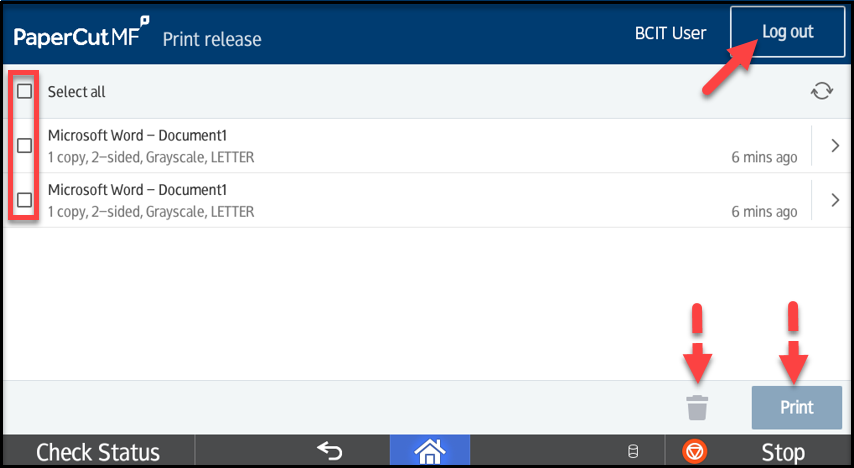
Once logged in, press Print Release to see your print jobs, or press Print All to print all your jobs.
At the Print Release screen, you can print or delete your held documents.
When done printing, press the Logout button at the top right corner, or simply tap your card again to end your session.
Troubleshooting Common Printing Issues
IT Services are mainly responsible for refilling supplies – including paper and toner. If however, Students notice that supplies are running low on a specific printer, we encourage them to submit a ticket to get the supplies replenished as quickly as possible.
IT Services are mainly responsible for attempting to fix\report any errors on the student printers. If however, Students notice that a printer is in error or in a non-functional state, we encourage them to submit a ticket to get the printer operational as soon as possible.
Students can visit the Library and speak to an Assistant who will help identify the failed job and assist in refunding the cost of the job to back to their account. Once this is done, you can then verify the funds have been refunded through the StudentPrint Web Page
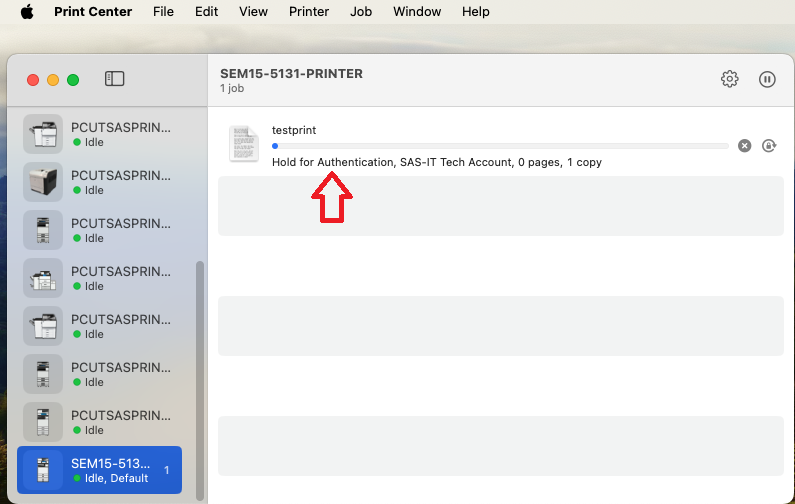
Sometimes, when printing from a Mac, the job may pause in the print queue with the message Hold for Authentication. This typically means the printer isn’t accepting the job, often due to incorrect or missing credentials. Below are common reasons this occurs and how to troubleshoot each scenario.
The first time you send a print job to the newly added printer, you will be prompted for a username and password.
Important: Enter only the prefix of your BCIT email address (the part before @my.bcit.ca or @bcit.ca), along with your usual BCIT password. For example, if your BCIT email address is asmith948@my.bcit.ca, enter asmith948 as the username.
In some instances, you will see Hold for Authentication instead of prompting you for your username and password. Please follow the steps below to resolve this:
Press the Retry button to the right of the error.
When it prompts you to enter a username and password, enter only the prefix of your BCIT email address (the part before @my.bcit.ca or @bcit.ca), along with your usual BCIT password.
Optionally, you can put a check mark next to Remember this password in mykeychain.
Click OK to send your print job. If the job disappears from the print queue, it was sent successfully and you’re done!
If you were not prompted for a username and password, you will need to clear the incorrectly stored credentials from the Keychain.
Type in Keychain Access in the Spotlight search in the top-right of your screen, and open Keychain Access.
In Keychain, search for ‘Prt-Pay’ (or ‘gutenberg’ for faculty and staff). This will display BCIT printers with stored credentials. Right-click on the entry and select Delete.
Try printing again, and when it prompts you to enter a username and password, please enter only the prefix of your BCIT email address (the part before @my.bcit.ca or @bcit.ca), along with your usual BCIT password.
Optionally, you can put a check mark next to Remember this password in my keychain.
Click OK to send your print job. If the job disappears from the print queue, it has been sent successfully.

 Then press Print